
Seeing vertical lines on MacBook screen and asking whether you can fix it yourself is a natural reaction. Whether you can fix your MacBook’s dead pixels or lines yourself depends solely on the cause of the issue.
You can easily address minor pixel issues with software or even a gentle massage. But, for issues such as true dead pixels or visible lines, you need proper display panel repair. So, how can you deal with the situation? Let’s find out whether you need a MacBook screen repair in Henderson, or if you can fix it yourself.
Why Do Vertical Lines Appear On My MacBook Screens?
Finding a vertical line on your Macbook could be a weird surprise. It does not indicate that your MacBook’s overall health is poor. But, if you identify the cause of vertical lines, you can prevent bigger issues and fix them without spending too much money.
Some of the common reason vertical lines appear on your MacBook screen includes:
- Software Glitches: Sometimes minor software problems can cause these graphical anomalies within the macOS, including vertical and horizontal lines.
- Hardware Problems: Your damaged MacBook screen or a faulty GPU can be behind the appearance of these lines.
- Connection Issues: Usually a loose or damaged connection between your motherboard and the screen causes these vertical lines to disrupt your typical display.
- Physically Damaged Screen: When you accidentally drop your Mac or there are bumps that cause damage to your MacBook’s internal components, resulting in these weird looking lines.
What Does It Mean to Have Dead Pixels or Lines On a MacBook Screen?
There are many ways to find out what it means that your MacBook’s screen has dead pixels or lines. A few of the ways include using a combination of visual inspection and diagnostic tests.
|
Issue |
Visual Appearance |
|
Dead pixel |
Small black dots on your screen appearing constantly |
|
Stuck pixels |
Blue, green, bright red dots on your screen |
| Lines |
Horizontal or vertical lines (thick or thin) appearing across the screen |
-
Conduct The Screenshot Test
You can use the fastest way to determine if the issue is a hardware defect or a software glitch. All you have to do is to take a screenshot. You can take a screenshot by pressing Command-Shift-3 at the same time.
Now, once you have the taken the screenshot, you will have to view it to find out whether:
- The lines or spots appear in the screenshot
- Or if the screenshot looks perfect
Lines appear in the screenshot when the problem is software-related or a failing Graphics Processing Unit (GPU). And if your screenshot looks perfect, the issue is strictly hardware-based, meaning the physical LCD panel or its internal connector is damaged.
-
Testing for Dead or Stuck Pixels
You can use the built-in Apple Diagnostics to find out whether your MacBook has dead or stuck pixels. Or you can also use a third-party website like LCDTech to cycle through solid colors.
To identify the dead pixels, look for small dots that do not match the background color. You may find these dots in white, red, green, or blue colors, these colored dots are most likely a stuck pixel. But, if you find the dots in black color only, then you can call them a dead pixel.
-
Identify Lines
You can find persistent lines on your MacBook screen. You find these lines are often fixed in one place. If movement of the lid causes the lines to flicker or change, the issue is likely a damaged flex cable. Expert technicians call these lines “Flexgate”.
If you suspect hardware failure, run the Apple Diagnostics tool by holding the Power button (Apple Silicon). You can also press the D key (Intel) during startup. This may provide an error code that identifies specific display or GPU failures.
Can You Fix The Dead Pixels Or Lines On Your MacBook Screen Yourself?
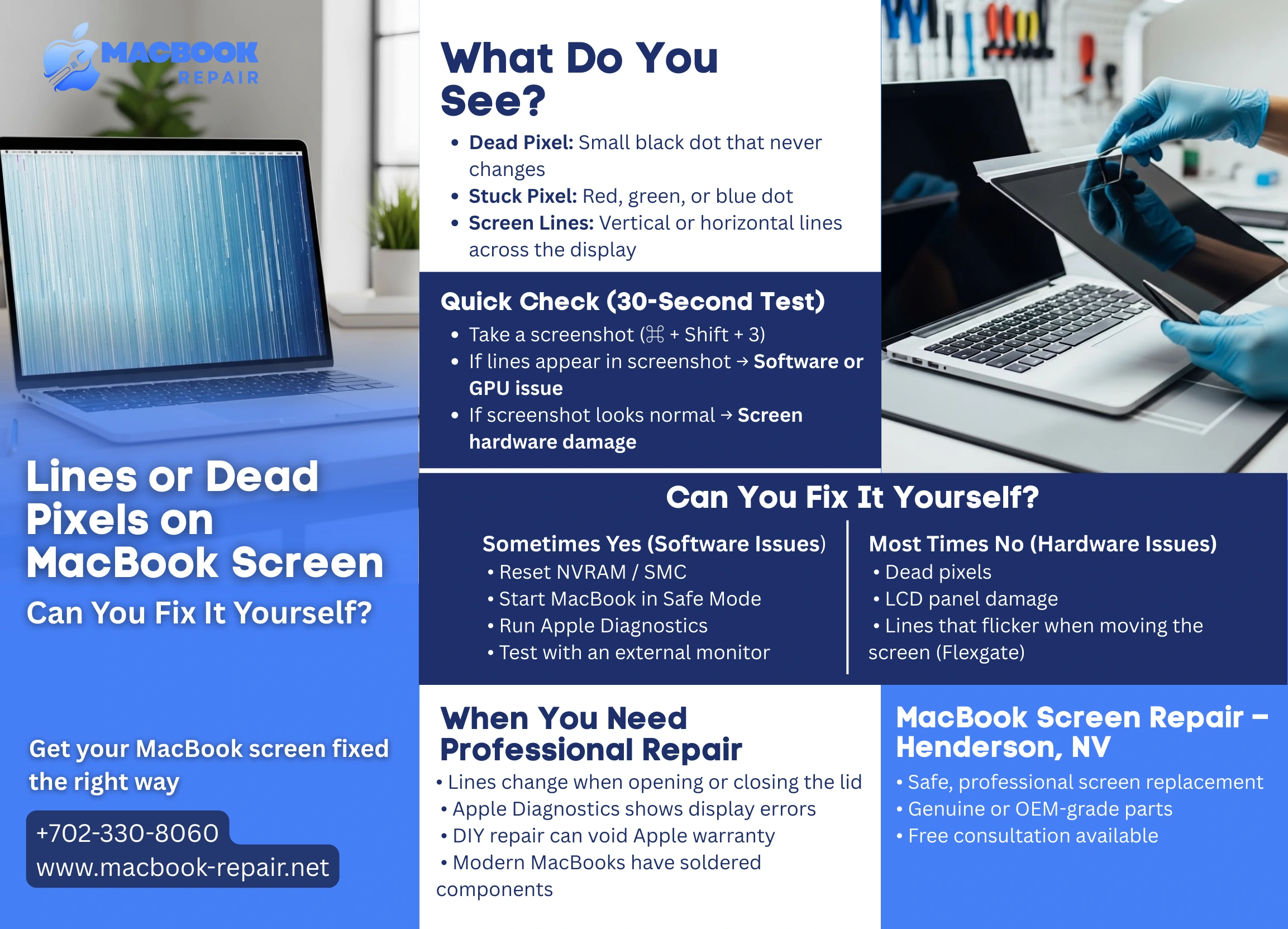
You can use a few software troubleshooting steps to resolve the screen lines or dead pixel issues. For problems related to hardware, you can use fixing methods officially supported by Apple in 2025.
Software Fixes
Now, the first step to resolve the screen issue should be to find out whether your software is the root cause or not. There are a few software troubleshooting steps to determine the firmware issues and resolve it completely.
- Reset NVRAM/PRAM and SMC. When you reset it, you can resolve hardware communication errors that manifest as display artifacts on your MacBook screen.
- Run Apple Diagnostics, a built-in tool to identify hardware failures, including display sensor issues and specific GPU problems.
- Boot in Safe Mode to load essential system drivers, helping in isolation to detect any third-party application that is causing the lines.
- External Monitor Test also helps to determine the problems to connect your MacBook to an external display via USB-C and HDMI.
Hardware Fixes
When you perform all the necessary steps to check for the software failures, you have to now cancel out all the possibility of hardware anomalies. Hardware issues typically include:
- a physical defect in the LCD panel
- its internal flex cable
If you are an experienced user, Apple provides access to genuine parts and specialized tools for out-of-warranty repairs. But, Apple also explicitly states that certain pixel issues are not possible to fix without a hardware swap.
Sometimes, you see lines that appear only when you tilt your MacBook at a specific angle. These types of lines indicate that your MacBook’s internal display cable has been damaged. To resolve this issue, you need a complete display assembly replacement rather than just a simple fix.
Choose A Professional MacBook Screen Repair Expert In Henderson
Oftentimes, Apple does not recommend DIY repairs as it involves integrated components such as RAMs, SSDs, and even batteries soldered into the logic board. You need a specialized technician to handle these delicate issues with proper tools and expertise. Other reasons why you should avoid getting a DIY MacBook screen is that it may end up voiding the MacBook warranty.
You have to leave the Issues involving liquid damage, logic board failures, or unidentifiable flickering to professionals. Your professional MacBook screen repair expert in Henderson has access to advanced equipment, including microsoldering stations and board-level diagnostic software to accurately pinpoint the issues.
Lastly, experts use genuine or OEM-grade components, ensuring your screen maintains its original color accuracy and longevity. Call us now to get your free consultation and get the best MacBook screen repair in Henderson, NV without voiding your Apple warranty.
Related: MacBook screen flickering problem