
Few things are more frustrating than watching your MacBook battery drop unexpectedly in the middle of work. If you keep asking yourself “why is my MacBook battery dying too fast?”, you are not alone. Rapid battery drain affects productivity, disrupts workflow, and can be a sign of deeper issues. Understanding the cause and knowing when to take action can save both time and frustration.
Whether it’s optimizing settings, controlling power-hungry apps, or seeking professional MacBook services specialist in Henderson, there are actionable steps to regain control over your device’s power performance.
Why Your MacBook Battery Dies Quickly
MacBook batteries naturally degrade over time, but certain habits, software inefficiencies, and hardware issues can accelerate the process. Common signs that indicate battery problems include:
- Rapid battery percentage drop even during light use
- Unexpected shutdowns or restart loops
- Battery Health showing Service Recommended
- Device only functioning reliably when plugged in
If these issues sound familiar, your MacBook likely needs intervention before battery failure affects your workflow.
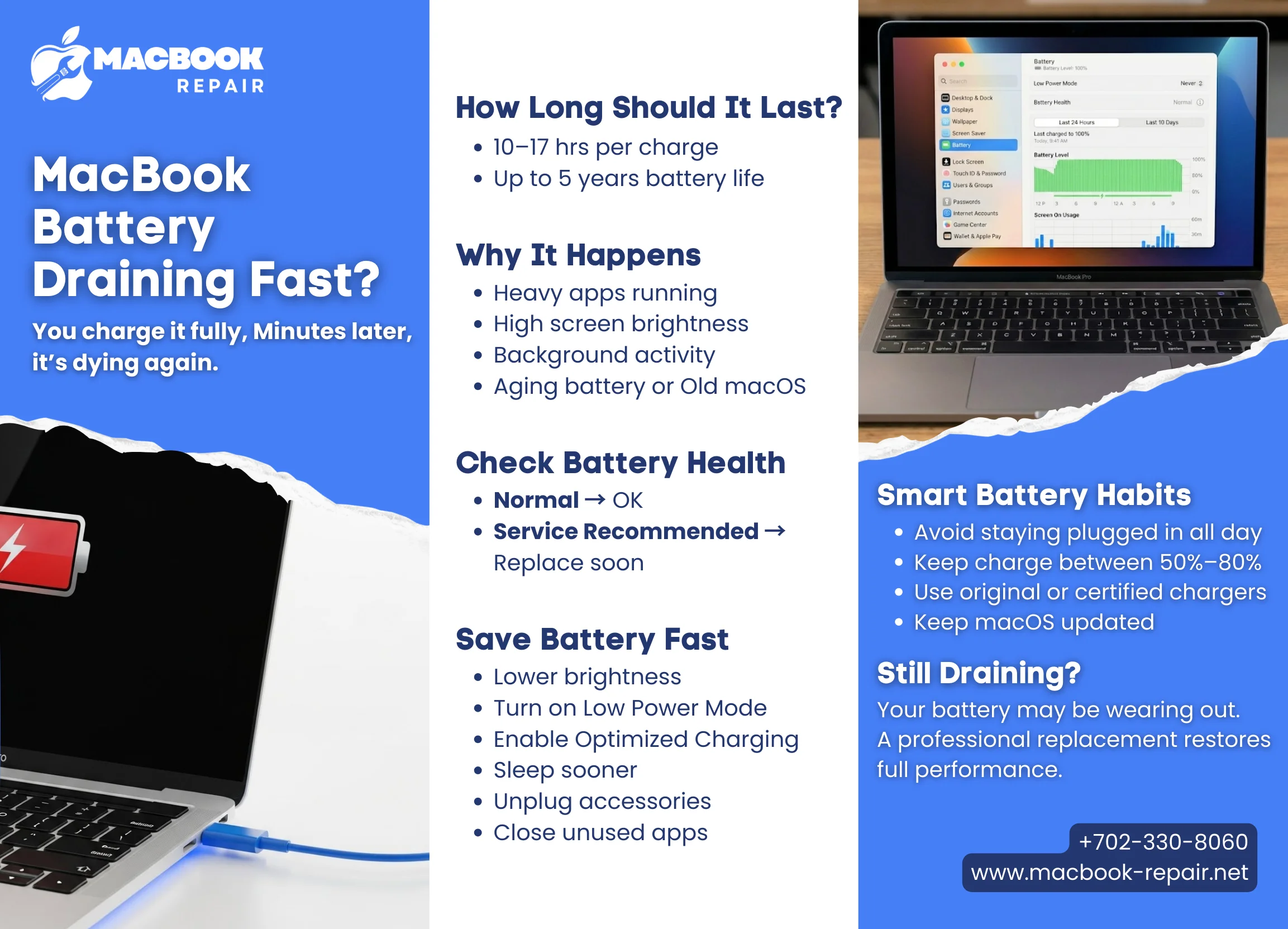
Proven Ways To Fix Your Fast Draining MacBook Battery
There are a lot of ways you can adopt to take control of your fast draining Mac battery and squeeze more life out of every single charge. Remember you can only benefit from these ways
Optimize Your macOS Battery Settings
So, your MacBook comes with a few built-in tools designed to maximize battery life. If you adjust the settings a bit, you may be able to make a big difference.
- You Can Enable Low Power Mode: This is a great quick-fix to ensure your Mac runs on power saver mode. You can enable this system by heading to “System Setting.” There you can find the option “Battery.” Here you can set your MacBook on “Low Power Mode” to “Always” or “Only on Battery.” It gently reduces screen brightness, limits background processes, and saves energy without a major hit to performance.
- You Can Turn on Optimized Battery Charging: You can find this option in the same Battery menu. It is a smart feature that learns your daily charging routine. And, it delays charging past 80% until you need it, helping to reduce long-term battery aging.
- You Need To Shorten Sleep & Lock Screen Timers: You should know the longer you stay on the screen stays on drains the power unnecessarily. You can turn this option on from System Settings. Head to the “Lock Screen” and set your display to turn off after a shorter period of inactivity, like 2-5 minutes. It is a simple step that can save a lot of battery.
- You Optimize Video Playback: Streaming video can be a major battery hog. In your Battery settings, enable “Optimize video streaming” to play HDR content in standard dynamic range while on battery. It allows your Mac to use significantly less power.
Manage The Energy-Intensive Apps On Your Mac
Many users wonder “why is my MacBook battery dying so fast?” Sometimes we ignore the background apps, but your processor cannot ignore them. These background apps can quietly drain your battery in the background. You should learn ways to find these apps and prevent them from draining your MacBook battery.
- Find the Resource-Intensive Apps: You can head to “Activity Monitor” from your Utilities folder and find the “Energy tab” to sort the apps according to their Energy Impact. This simple step will show you which of your background apps are consuming the most power in real-time.
- Close All The Inactive Apps: Sometimes music streamers and browsers can also drain power even when you minimize them. If you want to save your battery from draining too fast, you should build a habit of closing the apps that you are not actively using.
- Manage Login Items: When you launch too many apps at startup, your Mac will slow down for sure. You can review your list at “System Settings” by heading to the General option and find the “Login Items” and you can remove anything which you do not find important.
Adjust Your Peripherals And Hardware To Save Your Battery
You can make small changes in the ways of using your MacBook’s physical components to ensure your battery life extends. Try these ways to yield great results.
- Keep the brightness of your MacBook low as it noticeably extends your battery runtime.
- Turn off your keyboard’s backlight if you are in a well-lit environment using the function keys (F5/F6)
- Disconnect all the external hard drives, USB accessories, and dongles that draw power from your MacBook directly.
- When you are not using the wireless connections, turn them off from the Control Center.
Adopt Habits That Promote Good Battery Health
Whenever you use your MacBook, you can adopt these habits to ensure you are not indirectly harming your battery. Learn these ways to promote great battery health and prevent your MacBook battery from dying too fast for a longer time.
- Always keep your battery charge between 20% to 80%. Full charges or complete battery drain can promote chemical stress and promote aging.
- Always maintain your Mac’s temperature to avoid overheating. High temperature can potentially ruin your MacBook, not just its battery. It is important to avoid using your Mac on a soft surface to ensure proper ventilation takes place.
- Keep an eye on your battery health! You can head to System Settings and find the battery section where you can navigate to Battery Health. Do it every now and then to see whether a warning sign has appeared in that section or not. Usually a warning sign is “Service Recommended”.
When Should You Seek Professional MacBook Battery Replacement in Henderson?
If you notice that your battery continues to drain faster after trying every battery optimization method, consult an expert. You can get in touch with experts to get a Mac battery replacement in Henderson for fast, reliable battery replacements to reset your productivity levels.
- Battery Health shows Service Recommended
- Device fails to function on battery alone
- Unexpected shutdowns disrupt productivity
- Performance is inconsistent despite proper care
Final Thoughts
If you are constantly asking “my MacBook battery dying too fast?”, do not ignore the signs. Optimizing settings and habits can extend battery life, but they cannot reverse severe wear. Early action, smart maintenance, and professional repair ensure your MacBook stays reliable, efficient, and long-lasting.
For trusted MacBook repairs, battery replacement, and professional support, visit the our service center to explore all services.