
MacBook batteries usually degrade in a non-linear fashion, retaining around 80% of the capacity after 1,000 charge cycles for most modern models. A MacBook battery for MacBook Pro M-series, MacBook Air M1+ and others degrades after almost 5 years of typical daily use. You can expect your MacBook battery health to drop by 1% every month, which could lead to 88% after one year.
So, how to handle MacBook battery health below 80? In this article, we will discuss some of the practical ways to deal with a declining MacBook battery health and when to seek a MacBook battery replacement in Henderson.
What Happens When MacBook Battery Health Is Below 80?
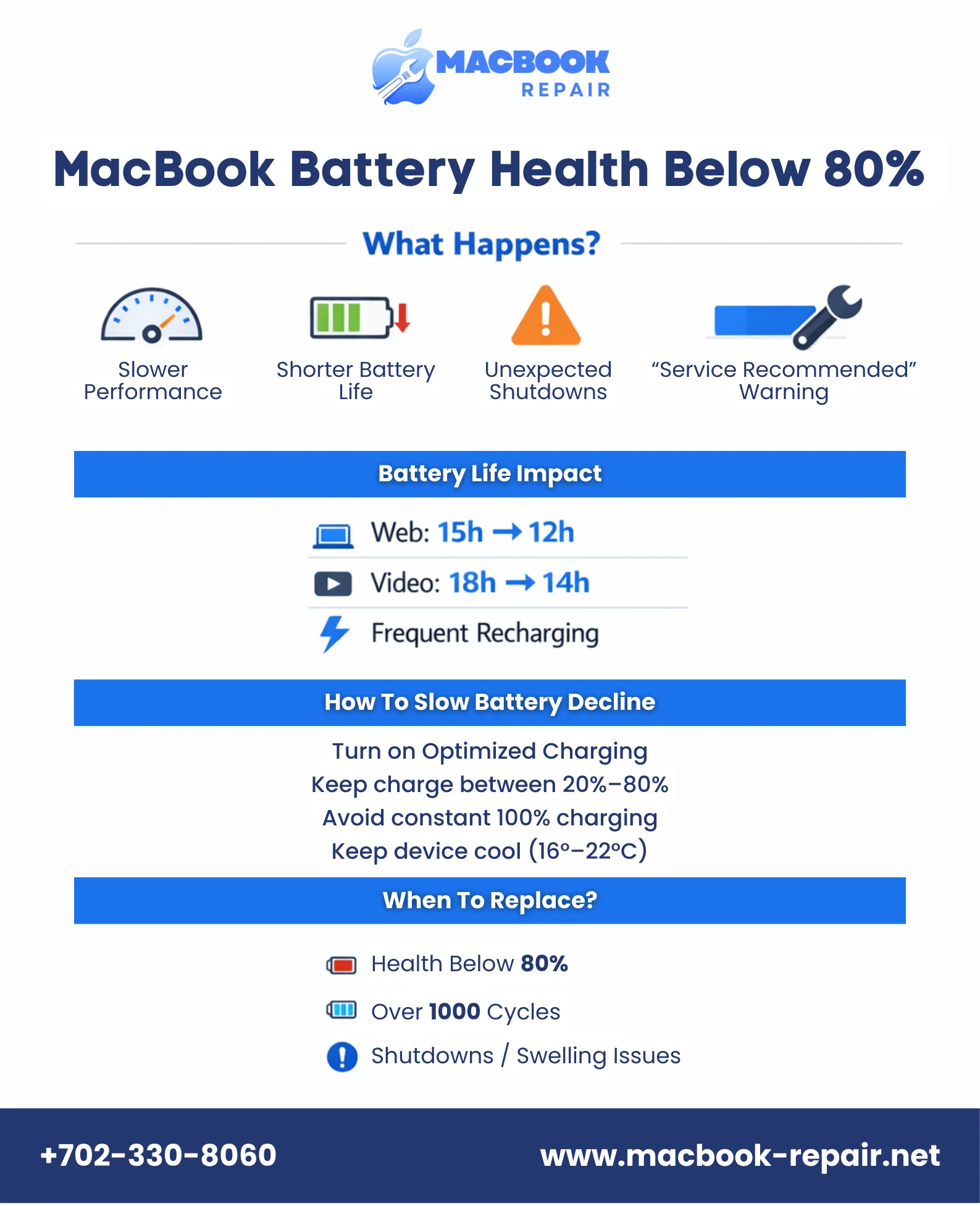
Is your MacBook battery health 80 percent? You are most likely going to experience slower performance, shorter battery life, and potential unexpected shutdowns. When your battery cannot deliver the peak power, your CPU works hard. Apple has flagged the batteries below 80% as “significantly degraded” and recommends replacing them to restore the original performance. Here are some of the ways a lower battery health manifests in your worklife.
1. MacBook Battery Performance Issues
Your MacBook is known worldwide for its exceptional performance. When your battery health degrades, it significantly affects the performance to match the power delivery by the CPU, resulting in lagging and sluggish apps. So, when your battery health falls below 80%, your MacBook limits peak CPU power delivery to prevent shutdowns and instability. This overcompensation of your processor causes throttling during intensive tasks, such as video editing or compiling code.
Many MacBook users report that their processor speed dropped to idle levels from 2+ GHz to 0.8 to 1 GHz on degraded batteries. Sometimes, the overall system’s responsiveness and poor performance decline by 20 to 50% even when the device is plugged in.
2. Shorter Battery Life
Your Mac battery lifespan shortens significantly, reducing its capability to hold a charge for much longer. So, whenever you observe the need to charge your device more frequently, you can just understand that your MacBook’s battery health is declining and you need a professional solution.
When your MacBook health drops below 80%, your runtime drops from 15 hours to 12 hours for web browsing and drops from 18 to 14 hours for video playback. When you have to charge your device frequently, it disrupts the workflow significantly.
3. Unexpected Shutdowns
Another very prominent effect of a declining battery health is that the device shuts down unexpectedly. This could happen even when the battery indicator shows power, as your processor needs more power and your battery cannot simply supply it.
4. Warning Signs
Usually the most obvious sign of poor battery health is the literal display of a warning message “MacBook service recommended battery.” You see a message on your device, suggesting that the battery has significantly degraded and that you need to get some service. This warning sign points out that your battery holds only 80% charge, which means you get only 4 to 6 hours of backup, reducing from 10 to 12 hours of usual backup.
How To Deal With A Declining MacBook Battery Health?
You should know what to do before your MacBook battery health drops suddenly. You must understand that your MacBook battery will gradually lose its ability to hold a full charge. You can consider it to be a normal part of your MacBook’s battery chemical aging process. Apple recommends service when your battery’s maximum capacity drops below 80% or it has surpassed 1,000 full charge cycles.
So, what can you do when it actually happens? You can significantly slow the rate of your battery’s decline by incorporating a few simple practices into your routine. Let’s find out what daily habits you can adopt to extend your MacBook battery’s lifespan.
1. Activate Optimized Charging
This is one way to ensure your battery stays healthy for a longer period. You can head to “System Settings” and select “battery” and ensure this feature is on. Your MacBook will learn your daily charging patterns and delay charging past 80% until you need it. This one simple step will reduce the time the battery spends at full charge.
2. Avoid Extreme Charges
Extreme charges can accelerate the process of battery degradation. For daily use, you must try to keep your battery level between 20% and 80%. You should also avoid consistently draining it to 0% or keeping it plugged in at 100% for extended periods. It creates more chemical stress than partial cycles.
3. Use It on Battery Power
Another way to extend your MacBook battery life is to ensure you use it on battery power. You can unplug your MacBook and use it on battery power for lighter tasks at least once a week. You can help it to exercise the battery and maintain its calibration.
How To Care For Your MacBook Battery Declining Health?
There are a few things you can do to take care of your MacBook battery declining health. The environment around your MacBook plays a crucial role in your battery’s long-term health.
1. Manage Your Device Temperature
Heat is one of the biggest factors in accelerated battery aging, especially for the residents of Henderson as they face extreme temperatures. You must take ample measures to keep your laptop in a cool, dry place. The ideal temperature of your device should be between 60° to 72° Fahrenheit (16° and 22° Celsius). You should also avoid using it on soft surfaces like beds or laps during heavy tasks, as this can block vents and cause your MacBook battery to overheat.
2. Store It Correctly
If you are not a regular user, you must store your MacBook properly. Before storing it you should charge the battery to about 50% and power it down. You must also store it in a cool place and recharge it back to 50% every six months.
When Do You Need MacBook Battery Replacement In Henderson?
When you know that the battery health has degraded enough that nothing you can do will preserve its health, it is time to replace it. You can stay informed about your battery’s condition and allow yourself to plan ahead of time to avoid any disruption at work.
-
Check Your Battery Status Regularly
You can find detailed information, including cycle count and maximum capacity, by going to System Settings > Battery > Battery Health. A “Service Recommended” notification means you should consider a replacement soon.
-
Update macOS
Apple includes battery management improvements in software updates. You can keep your operating system updated and ensure your MacBook can use the latest optimizations.
-
Replace When Needed
When the time comes, seek service from Apple or an Authorized Service Provider. While third-party batteries may be cheaper, they can pose safety risks. You should never delay replacement of a severely degraded battery that can lead to swelling or unexpected failure.
Replace Your MacBook Battery For Better Performance
Whenever you notice your battery health has started to decline significantly, you must prepare for the ultimate solution: MacBook battery replacement in Henderson.You can get in touch with our technicians to get an authentic battery. Call us now to replace your battery and restore your original productivity.