
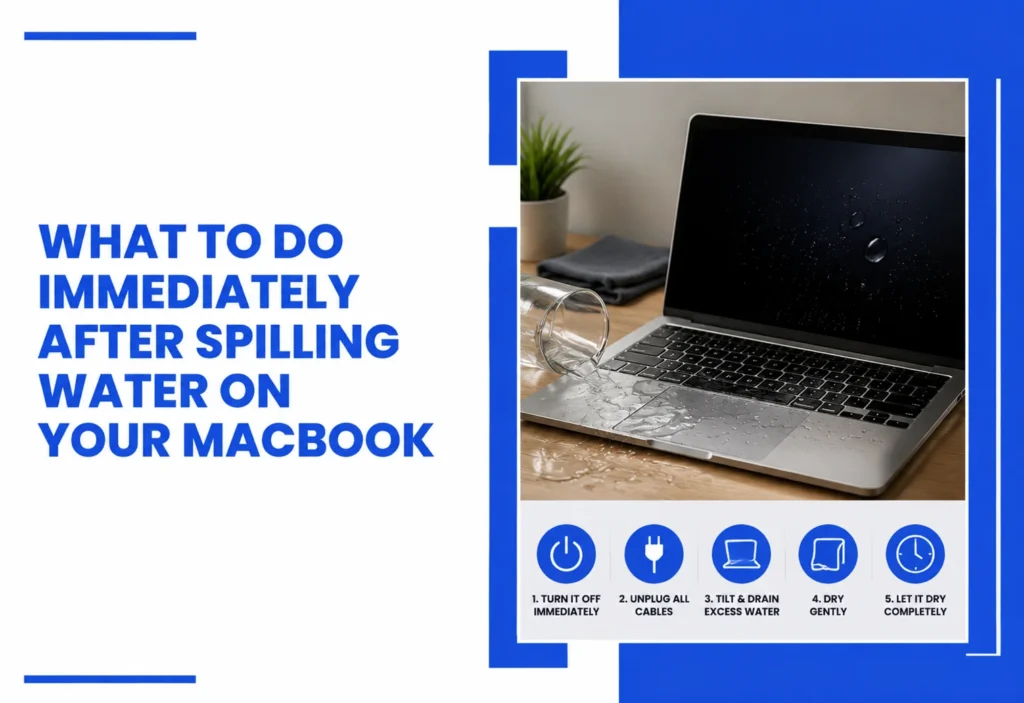
If you spill water on your MacBook, disconnect it from power, shut it down if it’s still running, unplug connected accessories, and avoid restarting it just to see if it still works. Don’t add heat or shake the device. A water-damaged MacBook may have internal damage that isn’t visible from the outside, so consider professional inspection if liquid may have entered the device.
An external inspection alone may not reveal the full extent of liquid exposure or internal component damage.
How much damage occurs depends on several factors: how much liquid was involved, where it landed, whether the MacBook was powered on or charging at the time, how long the liquid sat inside, and which internal components it reached. There’s no way to know the full picture just by looking at the outside.
Quick answer: If you spill water on a MacBook, disconnect power, shut it down, remove accessories, and don’t repeatedly restart it. Avoid heat, rice, and unnecessary handling. If liquid may have entered the device, professional inspection can help determine whether internal components were affected.
|
Spilled water on your MacBook? Avoid powering it back on just to test it. If liquid may have entered the device, professional inspection can help identify visible and hidden damage. |
What Should You Do Immediately After Spilling Water on a MacBook?
1. Disconnect the Charger:
Unplug the charger from the MacBook and disconnect it from the power source. Disconnecting external power reduces electrical activity in the device while liquid may still be present and can help limit the risk of additional electrical damage.
2. Shut Down the MacBook:
If it’s still on, shut it down rather than continuing to use it. Continuing to use the MacBook while liquid may be present can increase the risk of electrical damage, so shut it down rather than continuing normal use.
3. Disconnect Accessories:
Unplug anything connected: USB drives, hubs, external displays, external storage, or other peripherals. This limits the number of connected components exposed to any electrical issue.
4. Do Not Turn It Back On:
It’s tempting to restart the MacBook to see if it still works. Resist this. A device that powers on normally after a spill isn’t proof that liquid caused no internal damage; some effects take time to show up.
5. Keep the MacBook in a Safe Position:
If it’s still running, shut it down normally. If the MacBook is already off, leave it off. Place it on a stable, dry surface away from additional liquid exposure. Avoid shaking, squeezing, or repeatedly moving the device, since you cannot reliably determine how liquid is moving inside the chassis.
6. Arrange Professional Inspection:
If more than a small amount of liquid was involved, or if it reached the keyboard, ports, or vents. A MacBook liquid damage inspection can help identify internal exposure or component damage that may not be visible externally.
Quick Reference: What to Do After a Spill
| Action | Why It Matters |
| Disconnect power | Removes external power from the device |
| Shut down the MacBook | Stops normal operation after the spill |
| Remove accessories | Reduces connected external components |
| Avoid restarting | Prevents unnecessary power-on attempts |
| Keep liquid away | Helps prevent additional exposure |
| Seek professional inspection | Helps assess possible internal damage |
What Should You Not Do After a MacBook Water Spill?
- Don’t repeatedly turn it on: Each power-on attempt sends current through components that may still be wet.
- Don’t repeatedly press keys to test it: This can push liquid further into the keyboard mechanism.
- Don’t connect the charger: Charging reintroduces current to a device that may have compromised circuitry.
- Don’t use a hair dryer or heat gun: External heat can damage sensitive components and isn’t a recommended way to dry a liquid-exposed MacBook.
- Don’t shake the MacBook aggressively: This can spread liquid to areas it hadn’t yet reached.
- Don’t apply cleaning fluids or rubbing alcohol yourself: Internal liquid-damage cleaning requires appropriate tools, procedures, and model-specific knowledge.
|
WARNING: Don’t insert objects into wet ports: Avoid using paper towels, cotton swabs, or other objects inside USB-C or other ports to absorb liquid, as this can potentially damage the connector or leave debris behind. |
- Don’t put the MacBook in rice: Rice doesn’t address liquid that may already have reached internal components, and small particles can potentially enter ports or openings. Apple also advises against putting a wet Mac in a bag of rice.
- Don’t assume a working MacBook is undamaged: Corrosion and connector issues can develop after the fact.
- Don’t open the device unless you understand the risks: MacBooks have sensitive, tightly packed components, and disassembly without the right tools or experience can cause additional harm.
Can a MacBook Still Work After Water Damage?
Yes, a liquid-damaged MacBook may continue to power on or appear normal, but that doesn’t necessarily mean the internal components are unaffected. Some spills cause immediate, obvious symptoms. Others may cause symptoms that appear later as moisture, residue, or corrosion affects internal components. Liquid can affect connectors, circuitry, and other parts even when the screen and keyboard seem to work fine at first. The severity generally depends on the type and amount of liquid involved and exactly where it reached inside the device.
What Problems Can Appear After a Liquid Spill?
| Symptom | What It May Indicate |
| Won’t turn on | Possible power or internal component issue |
| Charging problem | Possible charging/power-related damage |
| Keyboard problems | Possible liquid exposure near keyboard/input components |
| Display problems | Possible display, connector, or board-related issue |
| Unexpected shutdowns | Possible internal instability |
| Corrosion | Moisture-related component damage |
What Is MacBook Corrosion and Why Does It Matter?
When moisture reaches metal contacts, connectors, or other electrical components inside a MacBook, it can lead to oxidation, commonly called corrosion. This is a gradual chemical reaction, which is part of why symptoms don’t always appear right away. Corrosion can interfere with electrical connections that were working fine immediately after the spill, causing intermittent or delayed problems. Not every water spill leads to corrosion; it depends on the liquid, how long it remained in contact with components, and whether it reached exposed metal. This is one reason an internal inspection can be more informative than a quick external check.
Can You Save Your Data From a Water-Damaged MacBook?
Whether data can be recovered depends on the MacBook model, the condition of its storage and logic-board components, and the extent of the liquid damage. A MacBook that won’t boot doesn’t automatically mean the data stored on it is lost; the issue may be related to power delivery or another component rather than storage itself. Repeatedly attempting to power the device on to check for data isn’t advisable, as it can increase risk. A MacBook data recovery evaluation can help determine whether data access or recovery is realistic in your specific situation. Regardless of the outcome, it’s worth keeping in mind going forward that regular backups are the most reliable protection against situations like this.
|
Repair Technician Tip: A MacBook that still turns on after a spill isn’t necessarily unaffected. Liquid exposure can involve connectors or internal components that aren’t visible from the outside, which is why repeated testing isn’t a substitute for inspection. |
When Should You Get Liquid Damage Repair?
Professional liquid damage assessment is particularly important when liquid may have entered the keyboard, ports, or internal components, or when the MacBook shows unusual behavior after the spill.
- A significant amount of liquid was involved
- Liquid entered through the keyboard, ports, or vents
- The MacBook shuts down unexpectedly
- It won’t turn on at all
- The display behaves abnormally (flickering, discoloration, lines)
- The keyboard or trackpad isn’t responding normally
- Charging has stopped working
- You notice unusual sounds, smells, or heat
- The device behaves differently in any way after the spill
- You need important data stored on the device
Professional repair can improve your chances of understanding what’s affected, but it doesn’t guarantee a specific outcome; that depends on the extent of the damage.
What Happens During MacBook Liquid Damage Repair?
The exact process depends on the MacBook model and how much liquid exposure occurred, but generally includes:
The exact process varies by MacBook model and the extent of liquid exposure. A technician may inspect internal components, check affected connectors and areas for residue or corrosion, perform diagnostic testing, and determine whether repair or replacement of components is appropriate. The MacBook is then tested to assess its functionality before the final assessment.
What Can a Technician Check That You Can’t See?
A liquid spill doesn’t always leave an obvious external sign. During an internal inspection, a technician can look for residue, affected connectors, corrosion, damaged components, and other signs of liquid exposure. These findings help determine whether the MacBook needs cleaning, component repair, replacement, or further diagnostic testing.
DO vs. DON’T
| DO | DON’T |
| Disconnect the charger | Keep charging it |
| Shut it down | Keep using it |
| Remove accessories | Repeatedly restart it |
| Arrange inspection | Use a hair dryer |
| Protect the device from further liquid | Shake it aggressively |
Is It Safe to Turn On a MacBook After It Gets Wet?
Powering a MacBook back on after liquid exposure isn’t necessarily safe until it’s been properly assessed, especially if liquid may have reached internal components. Simply letting a device sit and “dry out” isn’t the same as a professional evaluation; moisture and residue inside a closed device aren’t something you can confirm are gone just by waiting.
How Can You Prevent Future MacBook Liquid Damage?
- Keep drinks away from the immediate area around your MacBook
- Set up on a stable surface where cups aren’t easily knocked over
- Avoid placing liquids directly next to or above the keyboard
- Use a protective sleeve or case when transporting the device
- Keep current backups so a spill doesn’t put your data at risk
- Be extra cautious around open beverages while working
A MacBook can appear normal after a spill while still requiring inspection. If your device has been exposed to water or another liquid, a professional diagnosis can help determine what was affected.
Spilled Water on Your MacBook? Get It Checked.
MacBook liquid damage can involve internal components that aren’t visible externally; connectors, the logic board, and charging circuitry can all be affected even when the outside looks fine. If your MacBook has been exposed to water, an inspection can help you understand what’s actually going on before you decide on next steps. If you’re in the Henderson or Las Vegas area, our MacBook repair service team can take a look and walk you through what’s affected before any repair work begins.
Get a Liquid Damage Assessment
Final Thoughts
A MacBook water spill doesn’t always cause immediate symptoms, but restarting or continuing to use the device can increase the risk of additional damage. Disconnect power, shut the MacBook down, avoid heat and repeated power-on attempts, and consider professional inspection if liquid may have entered the device. If important files are involved, avoid unnecessary testing and ask about data recovery options.
Frequently Asked Questions
1. What should I do immediately after spilling water on my MacBook?
Disconnect the charger, shut the MacBook down if it’s still on, remove connected accessories, and avoid restarting it. Arrange professional inspection if a meaningful amount of liquid was involved.
2. Should I turn off my MacBook after spilling water on it?
Yes. If the MacBook is still running after a spill, shut it down and disconnect external power rather than continuing to use it.
3. Can I use a hair dryer to dry a wet MacBook?
No. External heat can damage sensitive components and isn’t a recommended way to dry a wet MacBook.
4. Does putting a wet MacBook in rice work?
Rice isn’t an effective method for addressing liquid inside electronics and doesn’t fix components that liquid has already reached.
5. Can a water-damaged MacBook be repaired?
In many cases, yes, but it depends on the extent of the damage, which components were affected, and whether corrosion has developed. A professional inspection is needed to know for sure.
6. Can data be recovered from a water-damaged MacBook?
It depends on the condition of the storage and related components. A MacBook that won’t boot doesn’t necessarily mean the data is lost, but recovery can’t be guaranteed.
7. Can water damage cause MacBook corrosion?
Yes, moisture reaching metal contacts or connectors can lead to oxidation over time, which is why symptoms sometimes appear after the spill rather than immediately.
8. Should I take my MacBook to a repair service after a water spill?
If a meaningful amount of liquid was involved, or if you’re seeing any unusual behavior, having it inspected can help identify damage that isn’t visible from the outside.