
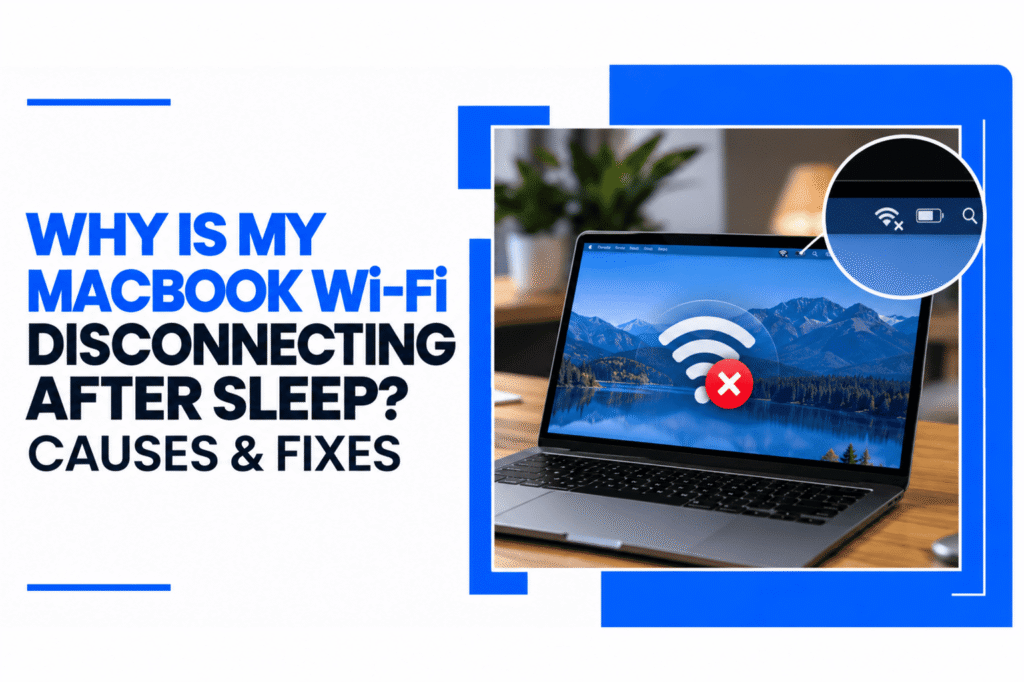
If your MacBook Wi-Fi keeps disconnecting every time you wake your Mac from sleep, the problem can quickly become frustrating. You may see the Wi-Fi icon disconnected, find that your MacBook cannot reconnect automatically, or have an active Wi-Fi connection that does not actually load websites.
This problem can be caused by temporary network issues, outdated macOS software, saved network settings, VPN or security software, router problems, or, in some cases, a hardware fault.
The good news is that several troubleshooting steps can help you identify the cause before you consider professional repair.
Why Does MacBook Wi-Fi Drop After Sleep?
When your MacBook goes to sleep, some system and network processes change their state to reduce power use. When the Mac wakes, Wi-Fi needs to reconnect and restore communication with the network.
Usually, this happens automatically. However, a problem with network settings, macOS, third-party software, or the network itself can prevent the connection from being restored properly.
You may notice symptoms such as:
- Wi-Fi disconnects every time your MacBook wakes
- Your MacBook shows Wi-Fi as connected, but websites do not load
- Wi-Fi reconnects only after you turn it off and on
- Your MacBook does not automatically reconnect to a saved network
- The connection works normally until the next sleep cycle
If the problem happens only after sleep, the timing is an important clue.
Is the Problem With Your MacBook or Wi-Fi Network?
Before changing settings on your MacBook, check whether other devices can use the same Wi-Fi network.
Try connecting your phone or another computer to the same network after your MacBook disconnects.
If other devices also lose their connection, the router, internet service or Wi-Fi environment may be responsible.
If other devices continue working normally: the problem is more likely related to your MacBook, its network configuration, macOS, or software.
Apple also recommends checking the Wi-Fi connection, restarting the Mac, checking for software updates, reviewing VPN or security software, restarting the router, and trying another network when troubleshooting Wi-Fi problems.
How to Fix MacBook Wi-Fi Disconnecting After Sleep
Try these fixes in order. Start with the simple ones before changing more advanced network settings.
1. Turn Wi-Fi Off and Back On
After waking your MacBook, turn Wi-Fi off and wait a few seconds before turning it back on.
You can do this from the Wi-Fi menu in the menu bar or Control Centre.
If the connection immediately returns, the issue may have been a temporary failure to restore the network connection after sleep.
2. Restart Your MacBook
A restart can clear temporary software and networking problems.
Apple notes that restarting can also cause the Mac to renew the internet address assigned to it by the network. This can resolve some connection problems caused by an expired or conflicting DHCP lease.
If restarting fixes the problem temporarily but it returns after every sleep cycle, there may be an underlying configuration or software issue.
3. Check for macOS Updates
An outdated version of macOS can sometimes contribute to connectivity problems.
Go to:
Apple menu → System Settings → General → Software Update
If an update is available, install it and test the MacBook again.
If your MacBook Wi-Fi keeps disconnecting after a recent macOS update, do not automatically assume the update is the only cause. Other network settings or third-party software may also be involved.
4. Forget and Reconnect to the Wi-Fi Network
A damaged or outdated saved network configuration can sometimes interfere with reconnecting after sleep.
You can remove the saved Wi-Fi network from your MacBook and then reconnect using the Wi-Fi password.
After reconnecting, put the MacBook to sleep and wake it again to see whether the connection remains stable.
This is particularly useful if the problem happens with one specific network but not others.
5. Check VPN and Security Software
VPNs, firewalls, and other security applications can interact with network connections.
If you recently installed or updated one of these programs and the Wi-Fi problem started around the same time, temporarily disabling the software can help identify whether it is involved.
Apple specifically recommends checking VPN and other security software when troubleshooting Mac internet connectivity.
Do not permanently remove security software simply because it appears to be involved. First confirm whether disabling it actually changes the behaviour.
6. Restart Your Router
If the MacBook disconnects from your home Wi-Fi but works normally on another network, your router or local network may be contributing to the problem.
Restart the router and allow it to reconnect fully before testing your MacBook again.
You should also check whether other devices experience similar connection drops.
If your MacBook works normally when connected to a phone hotspot or another Wi-Fi network, that is useful evidence that the Mac itself may not be the main problem.
7. Try Another Wi-Fi Network
This is one of the simplest ways to narrow down the cause.
Connect your MacBook to another Wi-Fi network, such as a phone hotspot, and then put the Mac to sleep.
After waking it, check whether the connection is restored normally.
Works normally on another network: Your home router, network configuration, or internet service may need attention.
Disconnects on every network: The problem is more likely to involve the MacBook itself, macOS, or its wireless hardware.
8. Run Wireless Diagnostics
macOS includes a built-in Wireless Diagnostics tool that can help identify network-related problems.
To access it, hold the Option key while clicking the Wi-Fi icon and select Open Wireless Diagnostics.
Apple says the tool analyses the wireless connection and provides detected issues and possible solutions. It does not change your network settings.
This can be particularly useful when the problem is intermittent and difficult to reproduce.
Could macOS Tahoe Cause Wi-Fi Problems?
If your MacBook started disconnecting from Wi-Fi shortly after installing a macOS Tahoe update, the timing is worth noting.
However, an update does not automatically mean it is responsible.
Software updates can coincide with changes to network configurations, VPN applications, security tools, or other software. The better approach is to check whether the problem happens consistently after sleep and whether it occurs across different networks.
If the issue began immediately after an update and continues despite basic troubleshooting, further software diagnosis may be appropriate.
Could Sleep Settings or Connected Devices Affect Wi-Fi?
Sleep-related problems are not always caused by Wi-Fi itself.
Connected USB, Thunderbolt or other external devices can sometimes interfere with normal sleep and wake behaviour. Apple recommends disconnecting external devices when troubleshooting sleep-related problems because a malfunctioning connected device can affect how a Mac behaves during sleep.
Try disconnecting:
- USB hubs
- External storage
- Docks
- Monitors
- Other Thunderbolt devices
- Other recently connected accessories
Then put your MacBook to sleep and test the Wi-Fi connection again.
If the problem disappears, reconnect your devices one at a time to identify whether a particular accessory is involved.
What If My MacBook Wi-Fi Keeps Disconnecting on Every Network?
If your MacBook loses Wi-Fi after sleep regardless of which network you use, the issue deserves closer attention.
This is especially true if you also notice:
- Bluetooth connection problems
- Unexpected restarts
- Freezing after waking
- Wi-Fi disappearing from Network settings
- Problems detecting wireless networks
- Issues beginning after physical or liquid damage
- Other hardware or system problems
Apple Diagnostics can check certain internal hardware components, including wireless components. Apple notes that if diagnostics identify a problem with the Wi-Fi hardware, professional service may be required.
At this stage, repeatedly resetting the same settings may not solve the underlying problem.
A professional MacBook Repair and diagnostic service can help determine whether the problem is related to software, network configuration, or hardware.
When Should You Get Professional MacBook Wi-Fi Troubleshooting?
You do not necessarily need repair just because your MacBook disconnects from Wi-Fi once or twice.
Professional diagnosis becomes more useful when:
- Wi-Fi drops after every sleep cycle
- The problem occurs on multiple networks
- Basic troubleshooting only works temporarily
- Wi-Fi and Bluetooth are both affected
- The MacBook has suffered liquid or physical damage
- Wireless Diagnostics does not resolve the problem
- The Wi-Fi connection disappears completely
- The issue is interfering with work or daily use
A recurring problem is worth diagnosing rather than repeatedly restarting your MacBook every time it wakes.
Need Help With a MacBook That Keeps Losing Wi-Fi?
If your MacBook reconnects after a restart but loses Wi-Fi again every time it wakes from sleep, you do not have to keep repeating the same fixes.
A proper diagnosis can help identify whether the cause is related to macOS, network settings, third-party software, or the MacBook’s wireless hardware.
MacBook repair services are available for customers in Henderson and the surrounding Las Vegas area.
Conclusion
If your MacBook Wi-Fi keeps disconnecting after sleep, start by checking whether the problem affects other devices or networks. Restart your MacBook, update macOS, reconnect to the Wi-Fi network, check VPN software, and run Wireless Diagnostics.
If the problem continues across multiple networks, professional diagnosis can help determine whether a deeper software or hardware issue is responsible.